Installing Drush on GoDaddy Shared Linux Hosting

If you're looking to install Drush on your shared hosting GoDadddy account; you must first enable SSH for your account. Once SSH has been enabled you can then use the tutorial below to install Drush; follow each step and you will be using Drush in just a few quick steps.
Enable SSH on your GoDaddy Account.
Connect via ssh using your primary the primary FTP account
wget http://ftp.drupal.org/files/projects/drush-7.x-5.9.tar.gz
Extract the source files using the tar command, and verify that the drush folder exists.
tar -pzxf drush-7.x-5.9.tar.gz
Create a file and name it .bash_profile, use vi to create the file.
vi .bash_profile
Add the following data by pressing i and pasting the following information using insert mode.
export DRUSH_PHP="/usr/local/php5/bin/php"
export COLUMNS
alias drush="/usr/local/php5/bin/php ~/drush/drush.php"
alias php="/usr/local/php5/bin/php"
After the lines have been pasted, press Esc to exit insert mode and type :wq and press enter.
After the file closes, you may repeat the process to ensure the lines were properly written.
Once you have confirmed that the lines were written to .bash_profile you will need to update your session by using the following command.
source .bash_profile
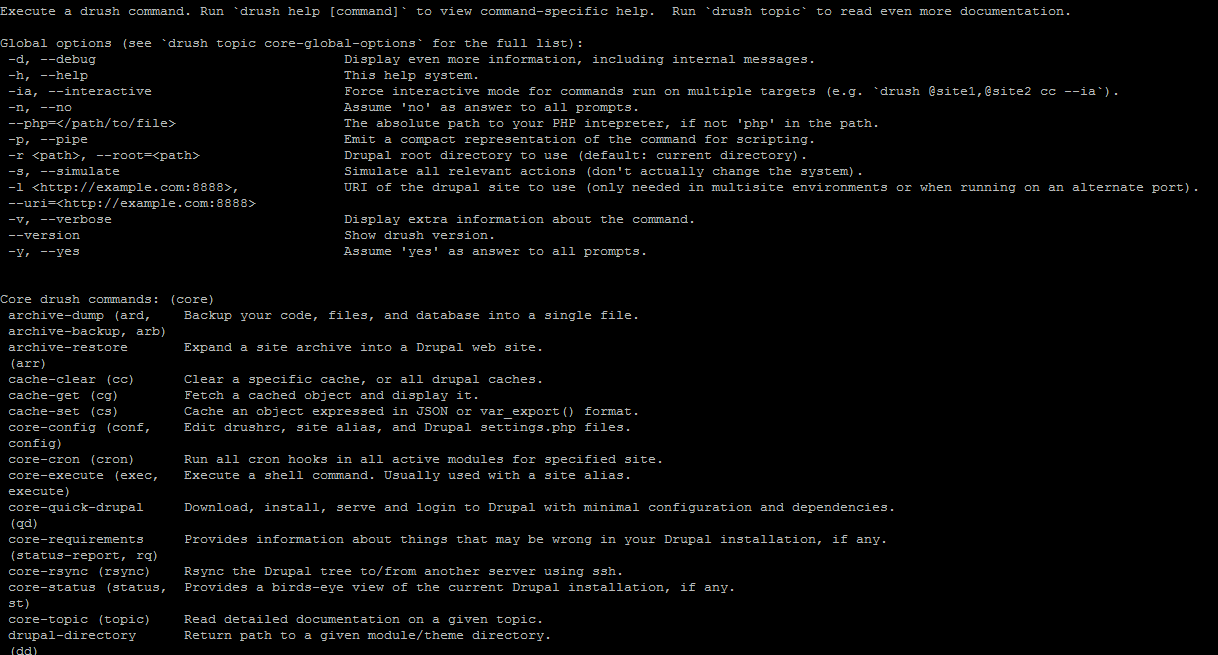
Confirm that drush installed properly and the proper aliases have been set, by
drush